
You've found a website with exactly the color palette you've been trying to nail. The balance of primary, accent, and neutral tones is just right. Now comes the tedious part — or at least, it used to be.
Traditionally, pulling a site's color palette meant opening DevTools, hunting through CSS files, decoding hex values buried inside minified stylesheets, and manually copying each one. For a site using 20+ colors across backgrounds, text, borders, and buttons, that's easily 30 minutes of work before you've even started designing.
There's a faster way. Here's how to extract a full color palette from any website in under a minute — and how to get that palette directly into Figma, Sketch, or Adobe Suite without any copy-pasting.
The quick method
CSS Peeper is a Chrome extension built specifically for design inspection, and its Colors tab is one of its most powerful features. Open it on any website and you get an instant, organized view of every color used across the entire page — not just the element you've selected, but everything.
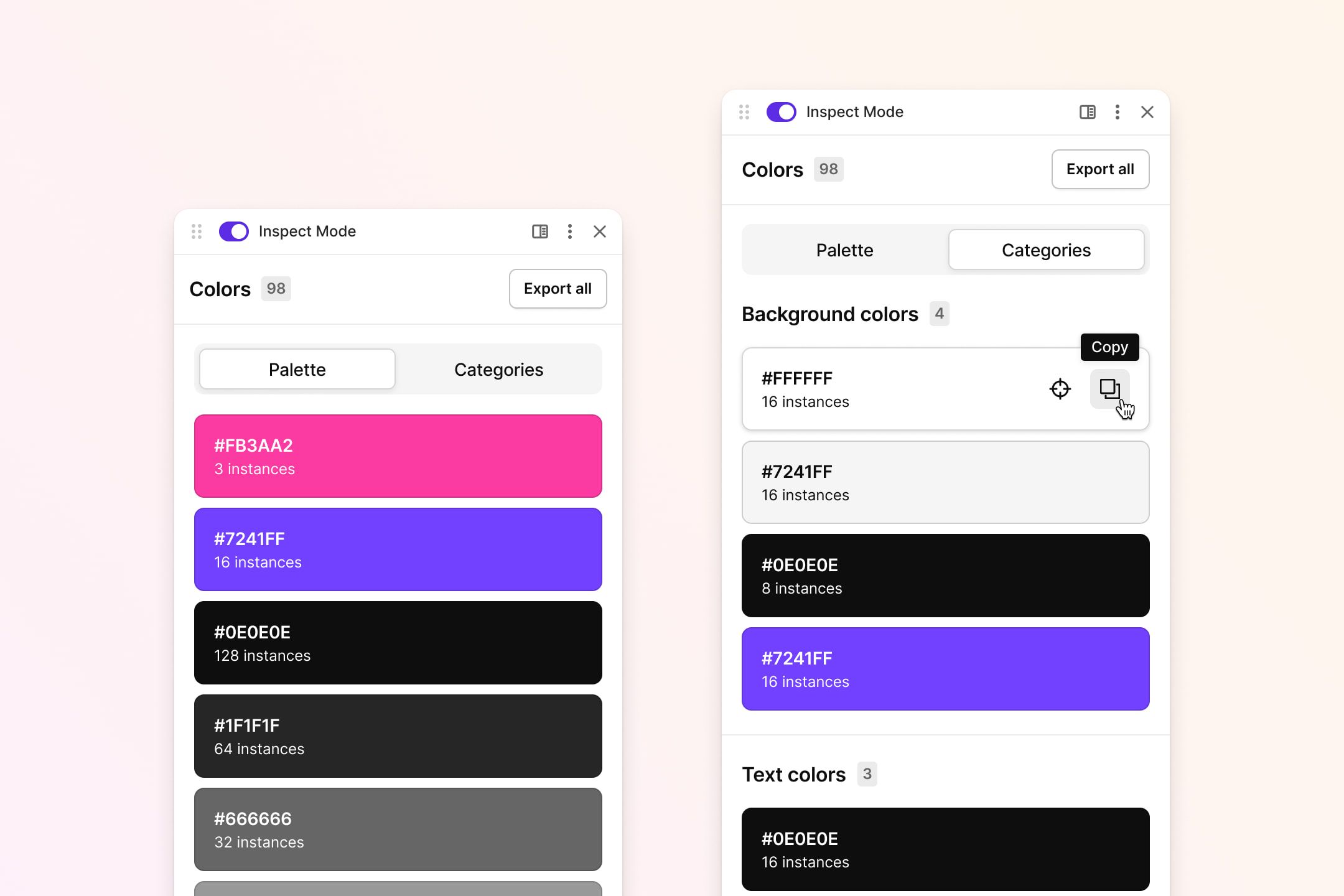
Colors
The palette view shows all colors used on the page, each listed alongside the number of instances where that color appears. A color used in 128 places is clearly a core brand color. A color used in 3 instances might be an accent or a hover state. The instance count alone tells you a lot about a site's color hierarchy before you've read a single pixel.
On the Professional plan, the Colors tab gains a Categories view that automatically groups colors by semantic role: typography colors, background colors, border colors, shadow colors, and foreground colors. This is genuinely useful — instead of seeing a flat list of 40 hex values and guessing which ones are the body text color vs. the card background, the semantic grouping does that interpretation work for you.
On the Ultra plan, you can go one level deeper and inspect individual color instances. Click the Inspect icon next to any color and you're taken to a dedicated screen showing every element on the page where that color is used — with its element name, CSS class, token/variable name (if the site uses design tokens), and the contrast ratio for that specific pairing. This is the kind of detail that matters when you're not just copying a palette but understanding how a design system works.
Gradients
CSS Peeper also detects gradients used on the page and surfaces all the individual color stops within them — so you're not just getting the solid colors, but the full picture of every color value in use, even inside complex background gradients.
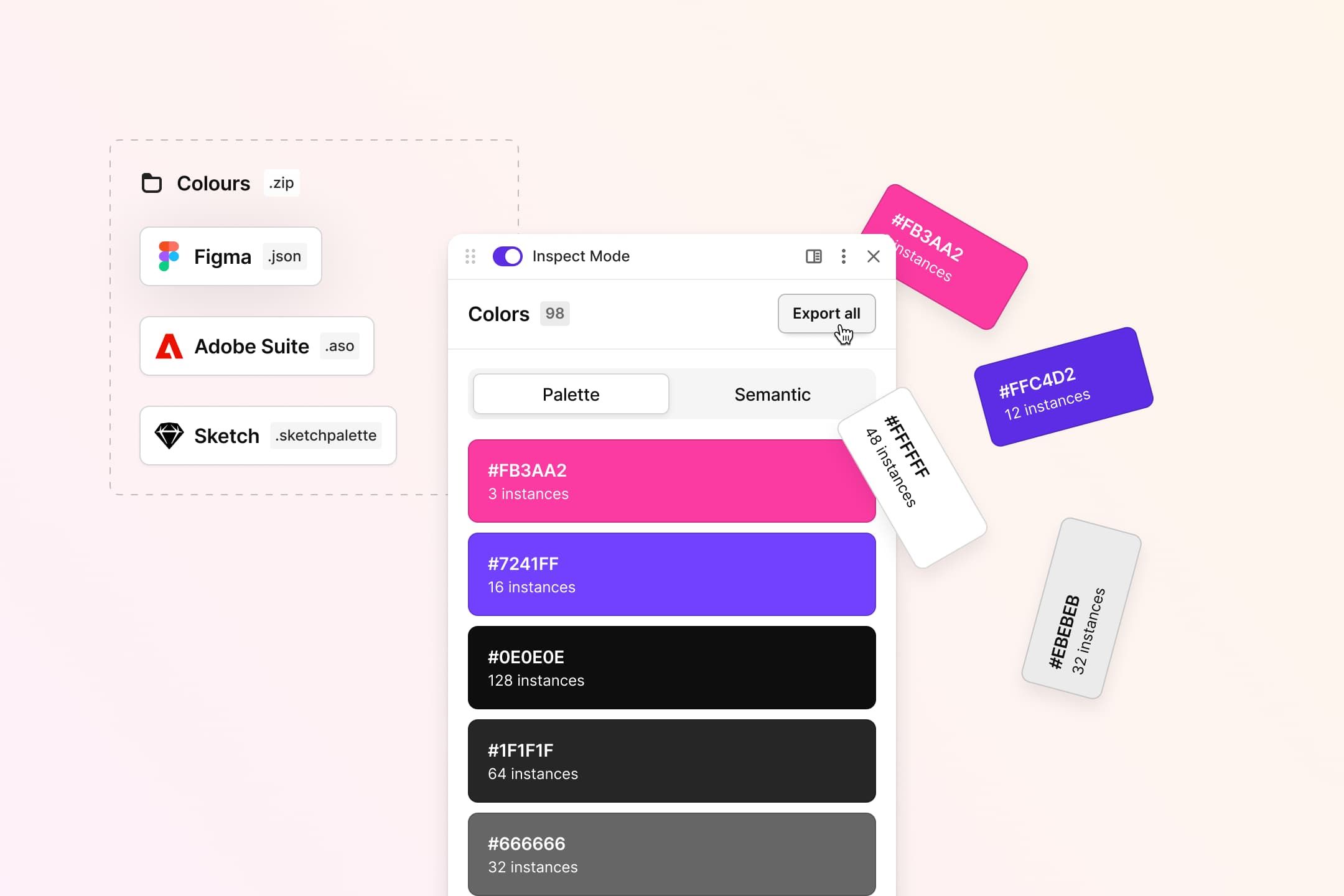
Exporting the palette to Figma, Sketch, or Adobe Suite
Once you've found the colors you want, exporting is a single action. Navigate to the Colors tab, hit Export All in the top-right corner, and you'll get a .zip file containing the full palette in multiple formats:
- .json — compatible with Figma and other token-based workflows
- .ase — Adobe Swatch Exchange, works directly with Adobe Illustrator, Photoshop, and XD
- .sketchpalette — Sketch's native palette format
This means zero manual copy-pasting. You export from CSS Peeper, import into your design tool, and your swatches are ready to use — named, organized, and in the exact values the original site used.
If you just want a single color quickly, you can copy any individual color to clipboard by hovering over it in the Colors tab and clicking the copy icon. The value copies in your preferred format — you can set this to HEX, RGB, or HSL in your Account preferences.
The manual method: Chrome DevTools
If you'd rather not install an extension, Chrome DevTools can get you the colors — it just takes considerably more effort.
Open DevTools with F12 or Cmd+Opt+I, then go to the Elements panel. Click on any element and look at its color, background-color, and border-color properties in the Styles tab. DevTools shows small color swatches next to each value — click one to open a color picker that shows the value in hex, RGB, or HSL.
The significant limitation here is that DevTools works element by element. There's no native way to see all colors used across an entire page at once. You'd need to click through every element you're interested in, note each value, and build the palette yourself manually. For a thorough extraction, that's genuinely slow work.
DevTools does have a CSS Overview panel (in the More tools menu) that can list all colors on a page, but it's an experimental feature with a less polished interface — it will list every color including ones used once in a background pattern or a hover state that you probably don't want in your working palette.
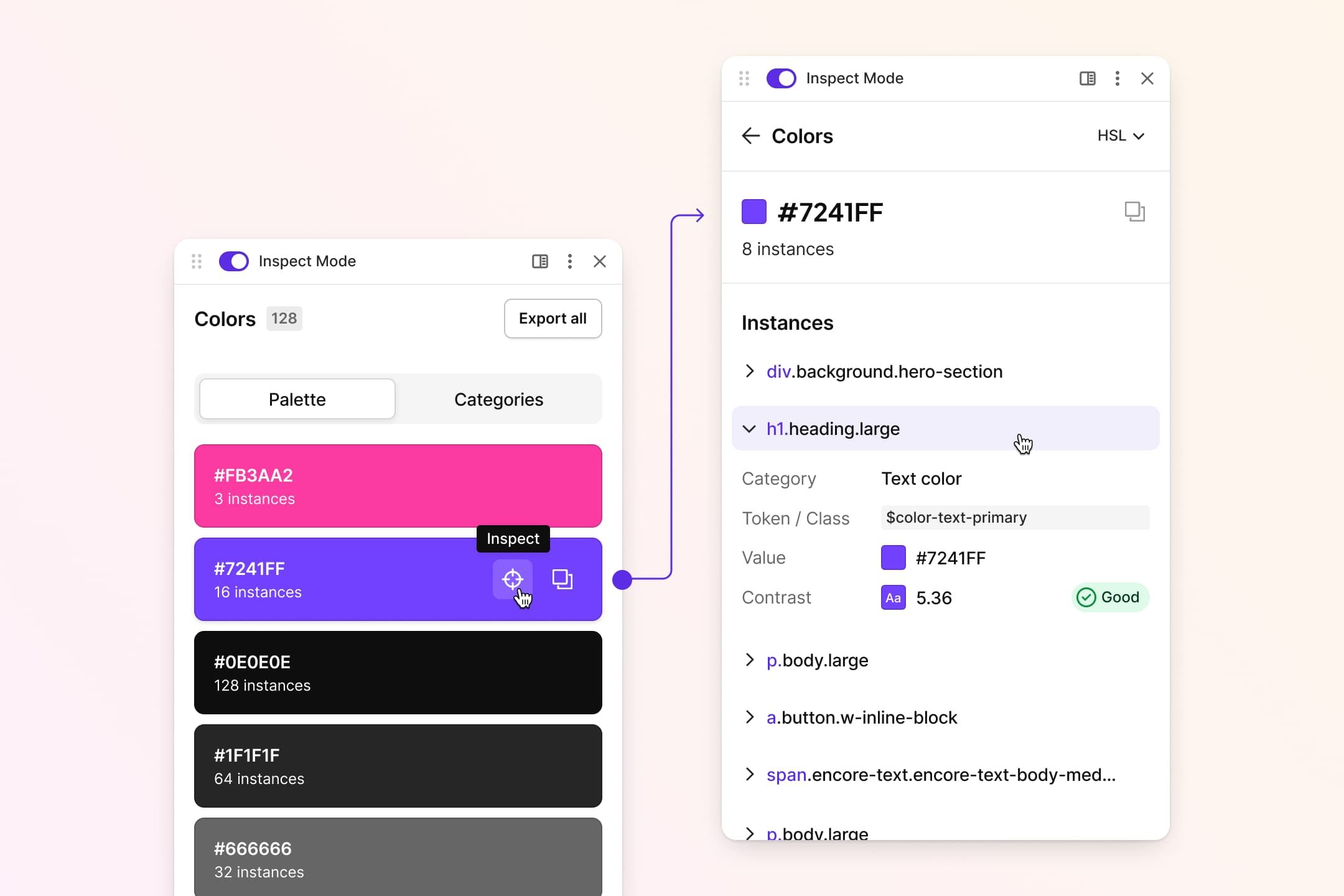
##Reading CSS variables and design tokens Many modern websites use CSS custom properties (variables) to define their color systems. Instead of color: #7241FF, you'll see color: var(--color-text-primary). This is actually better for you — it means the colors have semantic names that tell you their intended role in the design.
When CSS Peeper's Ultra plan shows you color instances, it surfaces the token name ($color-text-primary, for example) alongside the hex value. This gives you both the raw color and the design intent behind it. If you're trying to understand and replicate a design system rather than just copy a handful of hex values, this is significantly more useful than the raw values alone.
For sites that don't use variables, CSS Peeper still groups and counts colors intelligently — the instance counts serve as a proxy for understanding which colors are doing structural work vs. decorative work.
What to do with a palette once you have it
Extracting a color palette is rarely the end goal. Here's how designers typically use what they find:
- **Inspiration and reference. **You're not copying the design; you're using the palette as a reference point for understanding what color combinations work. A palette with a dark purple primary, warm white background, and a single orange accent can inspire a direction without being copied verbatim.
- Redesign and rebuild. If you're rebuilding or redesigning a site — for a client who owns it, for a migration project, for a rebrand that preserves some visual equity — having the exact existing palette exported cleanly saves significant time.
- Design consistency auditing. The Categories view and instance counts in CSS Peeper are particularly useful here. If a site claims to have a two-color brand palette but CSS Peeper finds 47 distinct colors with no obvious semantic structure, that's useful information for a design audit. The Auto-Contrast Scanner takes this further — it scans the entire page for WCAG accessibility failures and surfaces all failing color combinations in one view, showing which specific text/background pairings don't meet the 4.5:1 minimum contrast ratio.
Learning how good design systems work. Studying how well-designed sites handle color — how many colors they actually use, how they categorize them, how they name their tokens — is one of the best ways to improve your own approach to building design systems.
A note on using colors you find
Extracting colors for study, inspiration, and reference is standard practice. Using an extracted palette verbatim to create something that closely imitates the original site's design is a different matter — brand colors themselves generally aren't protectable, but overall design that creates confusion with an existing product can create legal exposure. When in doubt, use what you find as inspiration rather than as direct source material.
The bottom line
For occasional color lookups, DevTools gets the job done. For anyone regularly working with color in design — agency designers, freelancers, design leads, QA reviewers — a dedicated tool that shows you the full palette, instance counts, semantic categories, gradient color stops, and WCAG contrast scores in one panel is worth the install.
Inspect website styles in seconds.
Effortlessly.
Improve your workflow with effortless CSS insights for designers and developers. No more digging in a code.